Pythonでフォルダ内の文字列を一括置換|bat/txt/docx/xlsx対応GUI(ドライラン&バックアップ付)
フォルダ内の複数ファイルに同じ文字列が入っていて、まとめて置換したい
そんなときに使えるのが、今回紹介する「一括置換GUI(Python)」です。
このスクリプトは、.bat/.cmd/.txt/.docx/.xlsx のように拡張子が混在していても、同じ文字列を一括で置換できます。さらにGUI付きでドライラン(プレビュー)で事前に変更点を確認でき、バックアップも自動で作れるため、作業ミスを減らしやすい設計です。
この記事でできること(要点)
- フォルダ配下を再帰的に走査して、対象ファイルをまとめて置換
- 対応拡張子:.bat/.cmd/.txt/.docx/.xlsx
- ドライラン(プレビュー)で「どのファイルのどこが変わるか」を確認(この時点では変更しない)
- バックアップをフォルダ丸ごと作成(不要ならOFF可)
- 大文字/小文字を無視して検索(case-insensitive)
注意(先に読んでおくと安心)
- 一括置換は影響範囲が大きいので、最初は必ずドライラン→問題なければ実行の順で進めてください
- Word(.docx)は置換方法の都合で装飾が崩れる可能性があります(後述)
- 業務データに適用する場合は、権限・監査・バックアップなどの社内ルールに従ってください
動作環境・必要なもの
- Windows(GUIはTkinter)
- Python 3.x
- Word対応:
python-docx(任意) - Excel対応:
openpyxl(任意)
インストール(Word/Excel対応を使う場合)
pip install python-docx openpyxl
※未インストールでもスクリプト自体は動きます。該当拡張子はログに [SKIP] と出して処理をスキップします。
使い方(GUIの手順)
1) スクリプトを起動する
例:batch_replace_gui.py として保存し、次で実行します。
python batch_replace_gui.py
2) 旧文字列 / 新文字列を入力
GUI上部で、置換したい「旧文字列」と「新文字列」を入力します。デフォルト値はコード側(OLD / NEW)で変更できます。
3) 置換対象の「フォルダ」を選択
ファイルではなくフォルダを選ぶ点に注意してください。フォルダ配下を再帰的に走査して置換します。
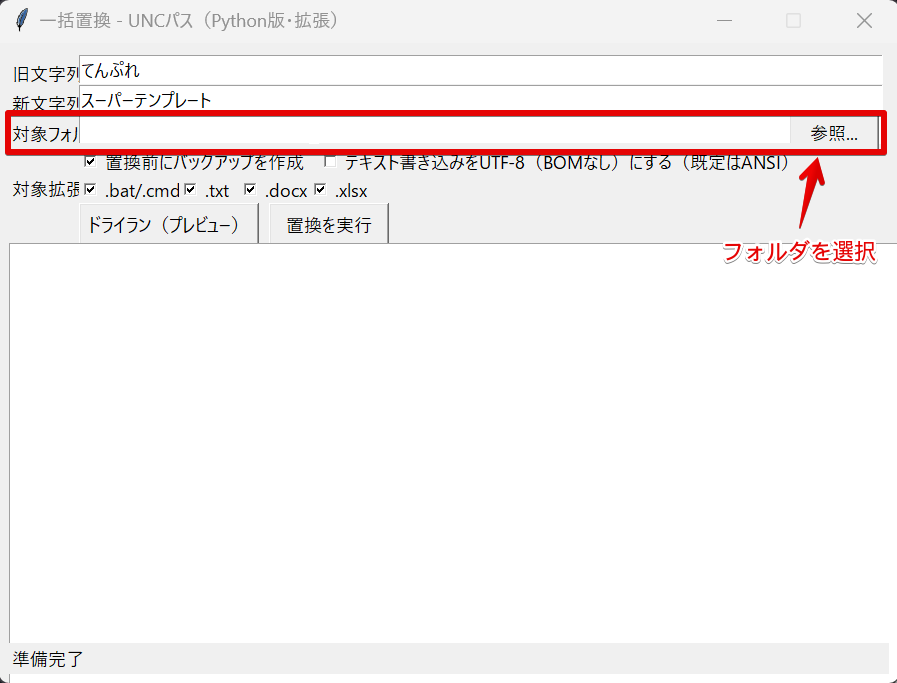
4) 最初は「ドライラン(プレビュー)」を押す(推奨)
ドライランではファイルは変更されません。ログに「どのファイルのどの部分が置換対象か」が表示されます。
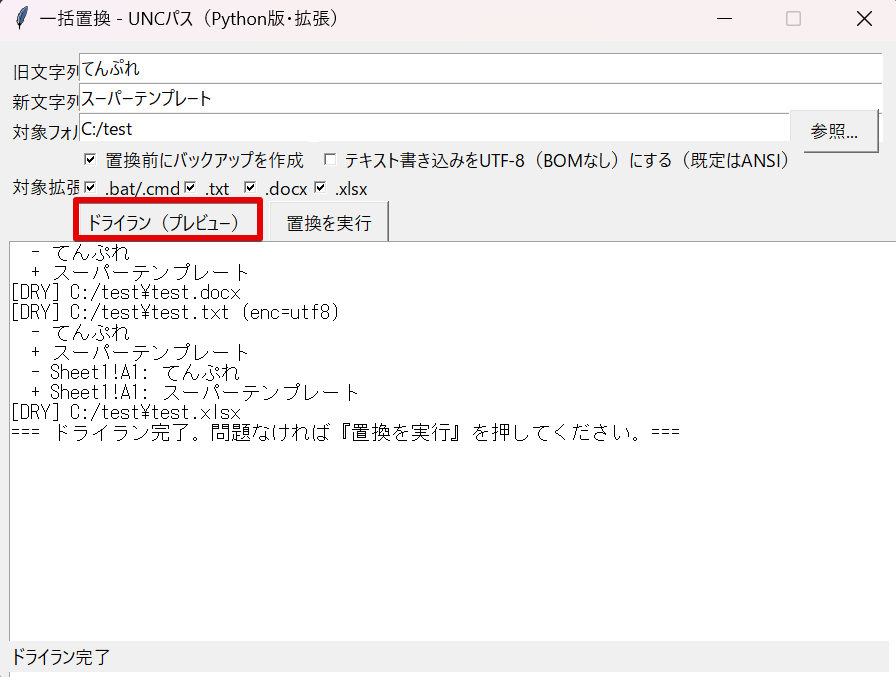
たとえば、置換対象フォルダの状態が以下のように「旧文字列」を含んでいる想定です。

5) 問題なければ「置換を実行」
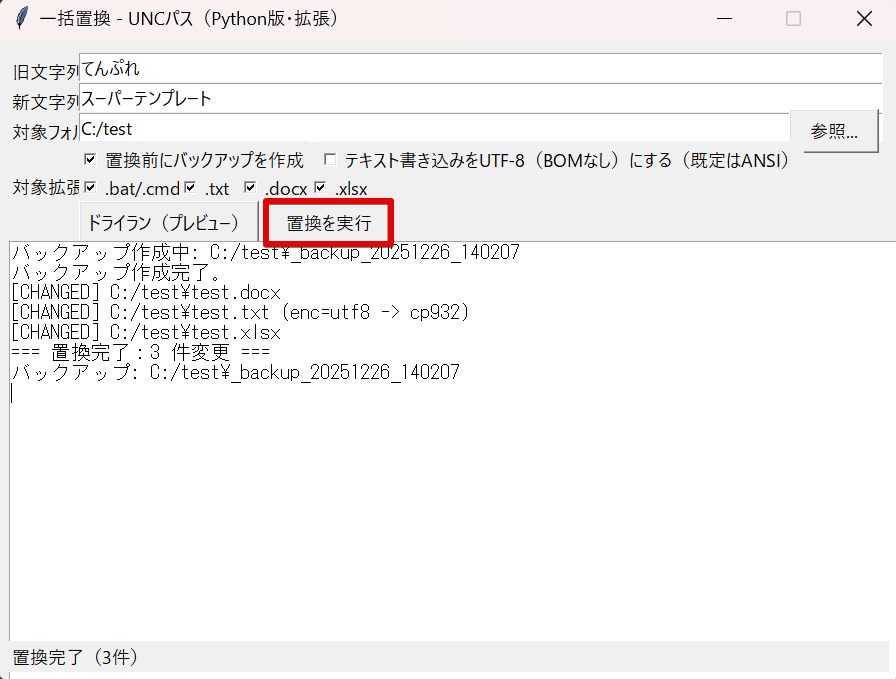
置換を実行すると、バックアップがONの場合はまずバックアップを作成し、その後に置換処理を行います。
完了後、バックアップフォルダと置換済みファイルが残ります。

バックアップが不要なら、GUIの「置換前にバックアップを作成」のチェックを外してください(ただし最初の運用はON推奨)。
仕様のポイント(事故りにくくする設計)
大文字/小文字を無視して置換
re.IGNORECASE を使い、旧文字列の大文字/小文字違いを吸収します。
バックスラッシュを含む置換でも事故りにくい
re.sub は置換文字列に \ が含まれると解釈が絡んで事故ることがあります。本スクリプトは「関数置換」を使い、エスケープ問題を避けやすくしています。
バックアップフォルダを自動除外
バックアップは _backup_YYYYMMDD_HHMMSS 形式で作成し、その配下は走査対象から除外します(バックアップをバックアップして無限増殖しないため)。
注意点(ここだけは押さえる)
テキスト系(.bat/.cmd/.txt)の文字コード
- 読み取りは「UTF-8(BOM) / UTF-16(BOM) / UTF-8 / cp932」などを順に試すスマート判定です
- 書き込みはGUIで ANSI(cp932) or UTF-8(BOMなし) を選択します
- 古い環境のバッチはUTF-8で動かないことがあるので、迷ったらANSIのままが無難です
Word(.docx)は装飾が崩れる可能性あり
置換は段落単位(paragraph.text)で行うため、段落内の装飾(太字、色、リンクなど)が置換後に失われることがあります。
- 見た目が重要な文書は、必ずドライラン+バックアップ+少量でテストしてください
- 装飾を保持したい場合は「run単位での置換」実装が必要になります
Excel(.xlsx)は文字列セルが対象(数式は既定でスキップ)
既定では数式セルはスキップします。数式内文字列まで置換したい場合は、コードの引数(include_formula)側を拡張してください。
置換対象は「テキストとしての一致」
旧文字列はそのまま文字として扱い、正規表現の特殊記号はエスケープしています。つまり「部分一致の単純置換」です。正規表現置換をしたい場合は設計変更が必要です。
スクリプト全文(コピペ用)
以下が本体コードです(そのまま動く形に整形済み)。
# -*- coding: utf-8 -*-
"""
フォルダ内ファイル一括置換(GUI)
対応: .bat/.cmd, .txt, .docx, .xlsx
機能:
- GUIでフォルダ選択
- ドライラン(プレビュー)
- バックアップ(フォルダ丸コピー)
- 文字コード: ANSI(cp932) / UTF-8(BOMなし)(テキスト系のみ)
- 大文字小文字無視
"""

import os
import shutil
import re
import tkinter as tk
from tkinter import filedialog, messagebox
from datetime import datetime

# 追加ライブラリ(Word/Excel)
try:
    from docx import Document
    DOCX_AVAILABLE = True
except Exception:
    DOCX_AVAILABLE = False

try:
    from openpyxl import load_workbook
    XLSX_AVAILABLE = True
except Exception:
    XLSX_AVAILABLE = False

# デフォルト文字列(GUI上で変更可能)
OLD = "てんぷれ"
NEW = "スーパーテンプレート"


def is_under_backup(path, root):
    """ルート直下の _backup_YYYYMMDD_HHMMSS 配下を除外"""
    rel = os.path.relpath(path, root)
    top = rel.split(os.sep, 1)[0].lower()
    return top.startswith("_backup_")


def read_text_smart(file_path):
    """
    テキスト読み取り(スマート版)
    優先度: UTF-8(BOM) / UTF-16(BOM) -> UTF-8(no BOM) -> cp932 -> latin-1
    戻り値: (text, detected_encoding)
    """
    with open(file_path, "rb") as f:
        data = f.read()

    # UTF-8 BOM
    if len(data) >= 3 and data[0:3] == b"\xef\xbb\xbf":
        try:
            return data[3:].decode("utf-8", errors="strict"), "utf8-bom"
        except Exception:
            return data[3:].decode("utf-8", errors="replace"), "utf8-bom(replace)"

    # UTF-16 BOM (LE/BE)
    if len(data) >= 2 and (data[0:2] == b"\xff\xfe" or data[0:2] == b"\xfe\xff"):
        try:
            return data.decode("utf-16", errors="strict"), "utf16-bom"
        except Exception:
            return data.decode("utf-16", errors="replace"), "utf16-bom(replace)"

    # UTF-8(BOMなし)
    try:
        return data.decode("utf-8", errors="strict"), "utf8"
    except Exception:
        pass

    # cp932(Shift-JIS相当)
    try:
        return data.decode("cp932", errors="strict"), "cp932"
    except Exception:
        # 最終保険(絶対に失敗しないが文字化けの可能性あり)
        return data.decode("latin-1"), "latin-1"


def write_text(file_path, text, use_utf8):
    """テキスト書き込み"""
    if use_utf8:
        with open(file_path, "wb") as f:
            f.write(text.encode("utf-8"))  # BOMなしUTF-8
    else:
        with open(file_path, "wb") as f:
            f.write(text.encode("cp932", errors="replace"))


def copy_tree(src, dst):
    """フォルダ丸ごとコピー(バックアップ用)"""
    if not os.path.exists(dst):
        os.makedirs(dst)

    for root, dirs, files in os.walk(src):
        rel = os.path.relpath(root, src)
        target_dir = os.path.join(dst, rel) if rel != "." else dst
        if not os.path.exists(target_dir):
            os.makedirs(target_dir)

        for name in files:
            src_file = os.path.join(root, name)
            dst_file = os.path.join(target_dir, name)
            try:
                shutil.copy2(src_file, dst_file)
            except Exception as e:
                print(f"[BACKUP-ERROR] {src_file} -> {e}")


# ---------- ファイルタイプ別の処理 ----------

def process_text_file(file, pattern, new, dry_run, use_utf8, append_log):
    """BAT/TXTのテキスト置換"""
    text, enc = read_text_smart(file)
    if not pattern.search(text):
        return False

    if dry_run:
        append_log(f"[DRY] {file} (enc={enc})")
        shown = 0
        for line in text.splitlines():
            if pattern.search(line):
                append_log(" - " + line)
                append_log(" + " + pattern.sub(lambda m: new, line))
                shown += 1
                if shown >= 5:
                    break
        return True

    new_text = pattern.sub(lambda m: new, text)
    write_text(file, new_text, use_utf8)
    append_log(f"[CHANGED] {file} (enc={enc} -> {'utf8' if use_utf8 else 'cp932'})")
    return True


def process_docx_file(file, pattern, new, dry_run, append_log):
    """
    Word(.docx)の置換:段落、表、ヘッダ/フッタを対象。
    注意: 段落単位で置換するため装飾が失われる可能性あり
    """
    if not DOCX_AVAILABLE:
        append_log(f"[SKIP] {file} -> python-docx 未導入")
        return False

    try:
        doc = Document(file)
    except Exception as e:
        append_log(f"[ERROR-OPEN-DOCX] {file} -> {e}")
        return False

    changed = False
    preview_shown = 0

    def clip(s, n=120):
        return s if len(s) <= n else s[:n] + "..."

    def replace_in_paragraphs(paragraphs):
        nonlocal changed, preview_shown
        for p in paragraphs:
            txt = p.text
            if not txt:
                continue
            if pattern.search(txt):
                if dry_run:
                    if preview_shown < 5: before = txt after = pattern.sub(lambda m: new, txt) append_log(" - " + clip(before)) append_log(" + " + clip(after)) preview_shown += 1 changed = True else: p.text = pattern.sub(lambda m: new, txt) changed = True # 本文 replace_in_paragraphs(doc.paragraphs) # 表(セル内段落) for table in doc.tables: for row in table.rows: for cell in row.cells: replace_in_paragraphs(cell.paragraphs) # ヘッダー/フッター for section in doc.sections: replace_in_paragraphs(section.header.paragraphs) replace_in_paragraphs(section.footer.paragraphs) if changed and not dry_run: try: doc.save(file) append_log(f"[CHANGED] {file}") except Exception as e: append_log(f"[ERROR-SAVE-DOCX] {file} -> {e}")
            return False
    elif changed and dry_run:
        append_log(f"[DRY] {file}")

    return changed


def process_xlsx_file(file, pattern, new, dry_run, append_log, include_formula=False):
    """
    Excel(.xlsx)の置換:全シートの文字列セル
    既定では数式セルはスキップ(include_formula=False)
    """
    if not XLSX_AVAILABLE:
        append_log(f"[SKIP] {file} -> openpyxl 未導入")
        return False

    try:
        wb = load_workbook(file, data_only=False)  # 数式保持
    except Exception as e:
        append_log(f"[ERROR-OPEN-XLSX] {file} -> {e}")
        return False

    changed = False
    preview_count = 0

    def clip(s, n=80):
        return s if len(s) <= n else s[:n] + "..."

    for ws in wb.worksheets:
        for row in ws.iter_rows(values_only=False):
            for cell in row:
                try:
                    val = cell.value

                    # 数式セルの扱い
                    if getattr(cell, "data_type", None) == "f" and not include_formula:
                        continue

                    if isinstance(val, str) and pattern.search(val):
                        if dry_run:
                            if preview_count < 10: before = val after = pattern.sub(lambda m: new, val) addr = f"{ws.title}!{cell.coordinate}" append_log(f" - {addr}: {clip(before)}") append_log(f" + {addr}: {clip(after)}") preview_count += 1 changed = True else: cell.value = pattern.sub(lambda m: new, val) changed = True except Exception as e: append_log(f"[ERROR-CELL] {file} {ws.title}!{cell.coordinate} -> {e}")

    if changed and not dry_run:
        try:
            wb.save(file)
            append_log(f"[CHANGED] {file}")
        except Exception as e:
            append_log(f"[ERROR-SAVE-XLSX] {file} -> {e}")
            return False
    elif changed and dry_run:
        append_log(f"[DRY] {file}")

    return changed


# ---------- GUI 本体 ----------

class App(tk.Tk):
    def __init__(self):
        super().__init__()
        self.title("一括置換 - Python版(拡張)")
        self.geometry("900x640")
        self.resizable(False, False)

        tk.Label(self, text="旧文字列:").place(x=10, y=15)
        self.old_var = tk.StringVar(value=OLD)
        tk.Entry(self, textvariable=self.old_var, width=80).place(x=80, y=12)

        tk.Label(self, text="新文字列:").place(x=10, y=45)
        self.new_var = tk.StringVar(value=NEW)
        tk.Entry(self, textvariable=self.new_var, width=80).place(x=80, y=42)

        tk.Label(self, text="対象フォルダ:").place(x=10, y=75)
        self.folder_var = tk.StringVar()
        tk.Entry(self, textvariable=self.folder_var, width=80).place(x=80, y=72)
        tk.Button(self, text="参照...", command=self.browse).place(x=790, y=68, width=90)

        # オプション
        self.backup_var = tk.BooleanVar(value=True)
        tk.Checkbutton(self, text="置換前にバックアップを作成", variable=self.backup_var).place(x=80, y=100)

        self.utf8_var = tk.BooleanVar(value=False)
        tk.Checkbutton(self, text="テキスト書き込みをUTF-8(BOMなし)にする(既定はANSI)", variable=self.utf8_var).place(x=320, y=100)

        # 対象拡張子
        tk.Label(self, text="対象拡張子:").place(x=10, y=130)
        self.use_bat_var = tk.BooleanVar(value=True)
        self.use_txt_var = tk.BooleanVar(value=True)
        self.use_docx_var = tk.BooleanVar(value=True)
        self.use_xlsx_var = tk.BooleanVar(value=True)

        tk.Checkbutton(self, text=".bat/.cmd", variable=self.use_bat_var).place(x=80, y=128)
        tk.Checkbutton(self, text=".txt", variable=self.use_txt_var).place(x=180, y=128)
        tk.Checkbutton(self, text=".docx", variable=self.use_docx_var).place(x=240, y=128)
        tk.Checkbutton(self, text=".xlsx", variable=self.use_xlsx_var).place(x=310, y=128)

        tk.Button(self, text="ドライラン(プレビュー)", command=lambda: self.execute(False)).place(x=80, y=160, width=180)
        tk.Button(self, text="置換を実行", command=lambda: self.execute(True)).place(x=270, y=160, width=120)

        self.log = tk.Text(self, width=110, height=26)
        self.log.place(x=10, y=200)

        self.status = tk.Label(self, text="準備完了", anchor="w")
        self.status.place(x=10, y=600, width=880)

    def browse(self):
        d = filedialog.askdirectory(title="対象フォルダを選択")
        if d:
            self.folder_var.set(d)

    def append_log(self, text):
        self.log.insert(tk.END, text + "\n")
        self.log.see(tk.END)

    def execute(self, replace):
        self.log.delete("1.0", tk.END)
        self.status.config(text=("置換を実行中..." if replace else "ドライランを実行中..."))

        root = self.folder_var.get().strip()
        old = self.old_var.get()
        new = self.new_var.get()
        use_utf8 = self.utf8_var.get()

        if not root or not os.path.isdir(root):
            messagebox.showerror("エラー", "対象フォルダが不正です。")
            self.status.config(text="フォルダ不正")
            return

        if not old or not new:
            messagebox.showerror("エラー", "旧文字列と新文字列を入力してください。")
            self.status.config(text="文字列未入力")
            return

        # 大文字小文字無視で検索(old内の記号もそのまま扱う)
        pattern = re.compile(re.escape(old), re.IGNORECASE)

        backup_path = None
        if replace and self.backup_var.get():
            backup_path = os.path.join(root, "_backup_" + datetime.now().strftime("%Y%m%d_%H%M%S"))
            try:
                self.append_log(f"バックアップ作成中: {backup_path}")
                copy_tree(root, backup_path)
                self.append_log("バックアップ作成完了。")
            except Exception as e:
                self.append_log(f"[バックアップ失敗] {e}")
                if not messagebox.askyesno("警告", "バックアップに失敗しました。続行しますか?"):
                    self.status.config(text="バックアップ失敗")
                    return

        # 対象ファイル収集
        targets = []
        use_bat = self.use_bat_var.get()
        use_txt = self.use_txt_var.get()
        use_docx = self.use_docx_var.get()
        use_xlsx = self.use_xlsx_var.get()

        for dirpath, _, filenames in os.walk(root):
            for fname in filenames:
                lower = fname.lower()
                ext = os.path.splitext(lower)[1]

                cond = False
                if use_bat and ext in (".bat", ".cmd"):
                    cond = True
                elif use_txt and ext in (".txt",):
                    cond = True
                elif use_docx and ext in (".docx",):
                    cond = True
                elif use_xlsx and ext in (".xlsx",):
                    cond = True

                if cond:
                    full = os.path.join(dirpath, fname)
                    if not is_under_backup(full, root):
                        targets.append(full)

        if not targets:
            self.append_log("対象ファイルが見つかりません。")
            self.status.config(text="対象なし")
            return

        changed = 0
        for file in targets:
            try:
                ext = os.path.splitext(file.lower())[1]
                if ext in (".bat", ".cmd", ".txt"):
                    ch = process_text_file(file, pattern, new, not replace, use_utf8, self.append_log)
                elif ext == ".docx":
                    ch = process_docx_file(file, pattern, new, not replace, self.append_log)
                elif ext == ".xlsx":
                    ch = process_xlsx_file(file, pattern, new, not replace, self.append_log, include_formula=False)
                else:
                    ch = False

                if ch:
                    changed += 1
            except Exception as e:
                self.append_log(f"[ERROR] {file} -> {e}")

        if replace:
            self.append_log(f"=== 置換完了:{changed} 件変更 ===")
            if backup_path:
                self.append_log(f"バックアップ: {backup_path}")
            self.status.config(text=f"置換完了({changed}件)")
        else:
            self.append_log("=== ドライラン完了。問題なければ『置換を実行』を押してください。===")
            self.status.config(text="ドライラン完了")


if __name__ == "__main__":
    # 高DPIでの表示崩れ対策(失敗してもOK)
    try:
        from ctypes import windll
        windll.shcore.SetProcessDpiAwareness(1)
    except Exception:
        pass

    app = App()
    app.mainloop()
拡張したいとき(.ini / .csv を追加する例)
テキストとして扱える拡張子なら、対象拡張子の判定に追加するだけで対応できます。たとえば .ini と .csv を追加する場合は、拡張子チェックの部分に次を足します。
# 例:.ini / .csv をテキスト扱いで追加する
elif use_txt and ext in (".txt", ".ini", ".csv"):
    cond = True
※ただしCSVは文字コード・改行コードが混在しやすいので、最初は必ずドライランで確認してください。
FAQ(よくある疑問)
Q. バックアップが大きくなります
フォルダ丸ごとコピーなので、対象フォルダが大きいとバックアップも大きくなります。まずは対象を必要最小限のフォルダに絞るのが現実的です。
Q. Wordの見た目が崩れた
段落単位で置換する仕様上、装飾が消えるケースがあります。見た目が重要なdocxは、対象を限定して試すか、run単位の置換が必要です。
Q. Excelの数式の中も置換したい
既定では数式セルはスキップです。数式まで置換する場合は、include_formula=True の設計に合わせて拡張してください(数式破壊のリスクが上がるため、慎重に)。
免責事項
本記事のスクリプトは、ファイル内容を一括で変更する性質上、適用範囲が広くなります。必ずドライランで確認し、バックアップを取ったうえで自己責任で実行してください。業務データに適用する場合は、所属組織のルール(権限・監査・バックアップ手順)に従ってください。